Installing LIT Platform with pip#
Current version: 2.8.5 · Release notes · All releases
The fastest way to get started with LIT Platform for chat and AI development. No Docker required.
Personal & Non-Commercial Use Only
This installation is licensed for personal and non-commercial use. If you're using LIT Platform within a business, as part of a product or service, or in any revenue-generating context, a commercial license is required. Contact us to discuss terms.
Requirements#
- Python 3.10 - 3.13 (Windows: 3.10 or 3.11 recommended — see note below)
- One of the following:
- Claude — a Claude Pro or Max subscription, or an Anthropic API key
- ChatGPT — a ChatGPT plan, or an OpenAI API key
- Gemini — a Google account (Antigravity sign-in)
- A local model — Ollama on your own computer; no account at all
You do not need to install Node.js or any provider's command-line program first. LIT fetches the one your choice needs.
Installation#
Download and run the installer — it auto-detects your OS, architecture, and Python version:
Windows: native or WSL?
- Native Windows — simplest path; fully supported.
- WSL2 + Ubuntu — if you prefer a Linux environment: the platform behaves exactly like the macOS / Linux docs everywhere else.
curl -fsSL https://github.com/Positronic-AI/lit-releases/releases/latest/download/install.py | python3
Then start the platform with the command the installer prints, normally:
On Ubuntu, Debian and Homebrew Python the system Python does not take packages directly, so the installer makes LIT its own environment at ~/lit-env and prints ~/lit-env/bin/lit serve as the start command. On a fresh Ubuntu or Debian it may first ask you to run sudo apt install -y python3-venv.
Or download and run in two steps:
irm https://github.com/Positronic-AI/lit-releases/releases/latest/download/install.py -OutFile install.py
python install.py
Then start the platform:
Install Ubuntu under WSL from an administrator PowerShell:
Why Ubuntu-24.04 and not Ubuntu?
The bare Ubuntu name installs the newest release, which may ship a Python version we don't have wheels for yet (e.g. Python 3.14). Ubuntu 24.04 LTS ships Python 3.12, which is fully supported.
Reboot if prompted, then launch Ubuntu and create your Unix user account when asked. Fresh Ubuntu images don't include pip, and Ubuntu 24.04+ blocks installs into the system Python — so set up a virtual environment first, then run the standard installer inside it:
sudo apt update && sudo apt install -y python3-venv
python3 -m venv ~/lit-env
source ~/lit-env/bin/activate
curl -fsSL https://github.com/Positronic-AI/lit-releases/releases/latest/download/install.py | python3
lit serve
In future shells, activate the venv again first (source ~/lit-env/bin/activate) — or skip activation and run ~/lit-env/bin/lit serve directly.
WSL-specific notes:
- Open the app from your Windows browser at http://localhost:8080 — WSL2 forwards localhost automatically.
- The provider's program (Claude Code, Codex, Antigravity) is downloaded inside WSL by the welcome screen; nothing needs installing on the Windows side.
- If the install fails with a
CreateVmtimeout, see troubleshooting.
If you prefer to install manually, pick the wheel for your Python version and platform from the releases page:
# Example: Python 3.12 on Linux
pip install https://github.com/Positronic-AI/lit-releases/releases/download/v2.8.5/positronic_lit-2.8.5-cp312-cp312-manylinux_2_17_x86_64.manylinux2014_x86_64.whl
See Choosing Your Python Version and Install Extras below.
Open your browser to http://localhost:8080. A new install opens on the welcome screen, which connects your AI and takes you to your first conversation.
Any Python 3.10–3.13
The installer picks the wheel for your Python version and platform automatically.
Choosing Your Python Version#
The installer handles this automatically. If installing manually, check your version and use the matching wheel:
| Python Version | Wheel Suffix |
|---|---|
| 3.10 | cp310-cp310 |
| 3.11 | cp311-cp311 |
| 3.12 | cp312-cp312 |
| 3.13 | cp313-cp313 |
Wheels exist for Linux x86_64, Windows AMD64, and macOS (Apple Silicon and Intel).
Install Extras#
The base install is the full agentic platform — chat, autonomous agents, persistent channels, and all AI provider integrations. Optional extras:
| Extra | What it adds | Who needs it |
|---|---|---|
[server] |
systemd integration for multi-tenant server mode (Linux) | Team/server deployments |
[dev] |
Linting tools | Contributors |
The deep-learning engine (training studio, ML pipeline, [ml]/[full] extras) was retired from the product in 2.7.x. Its last release is 2.6.24.
First-Time Setup#
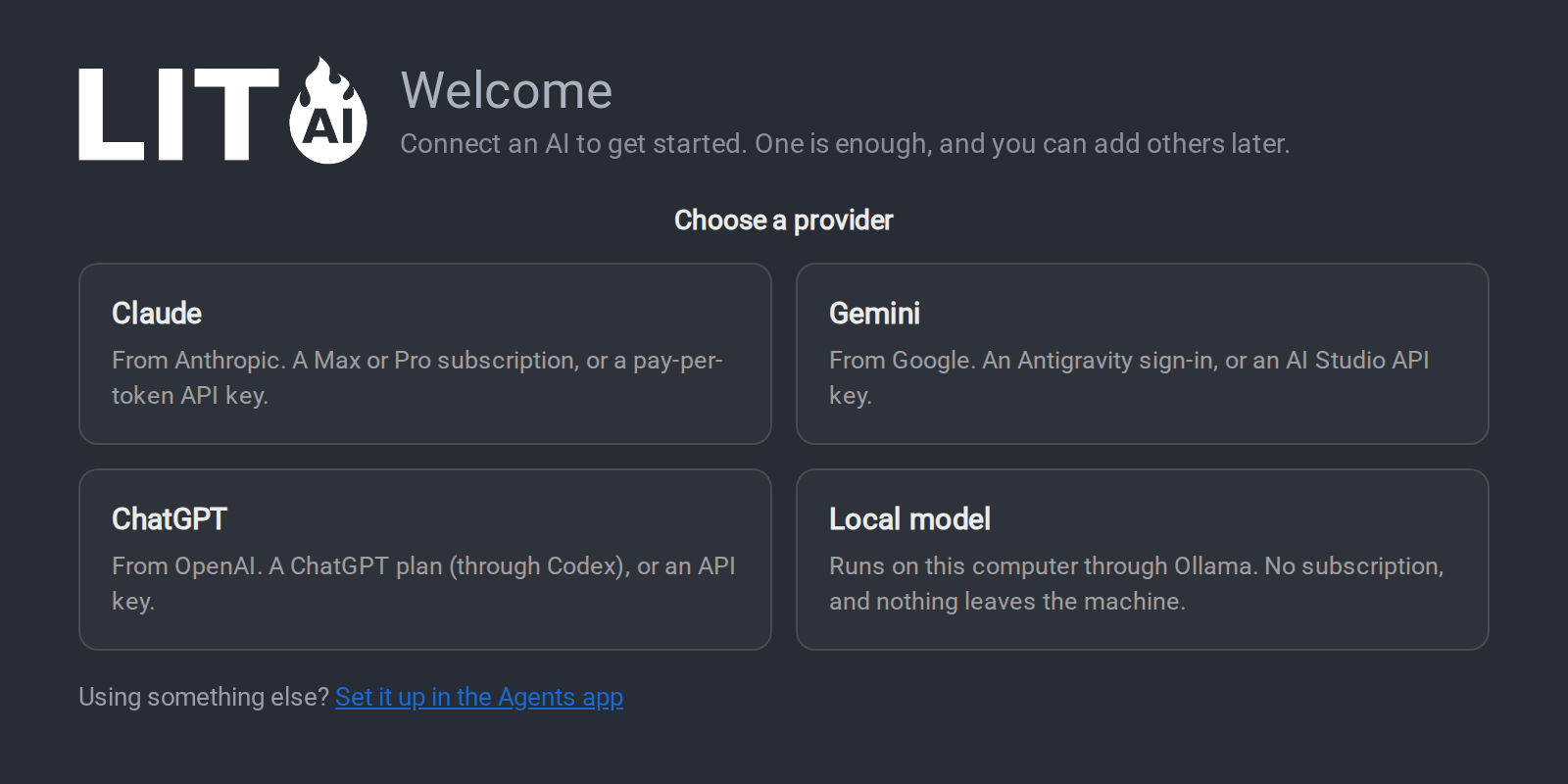
The welcome screen asks two questions and then connects you. It takes about a minute.
1. Choose a provider#
Pick the AI you already use: Claude, Gemini, ChatGPT, or a Local model.
2. Say how you pay#
A subscription you already have (you sign in once), or a pay-per-token API key (you paste it).
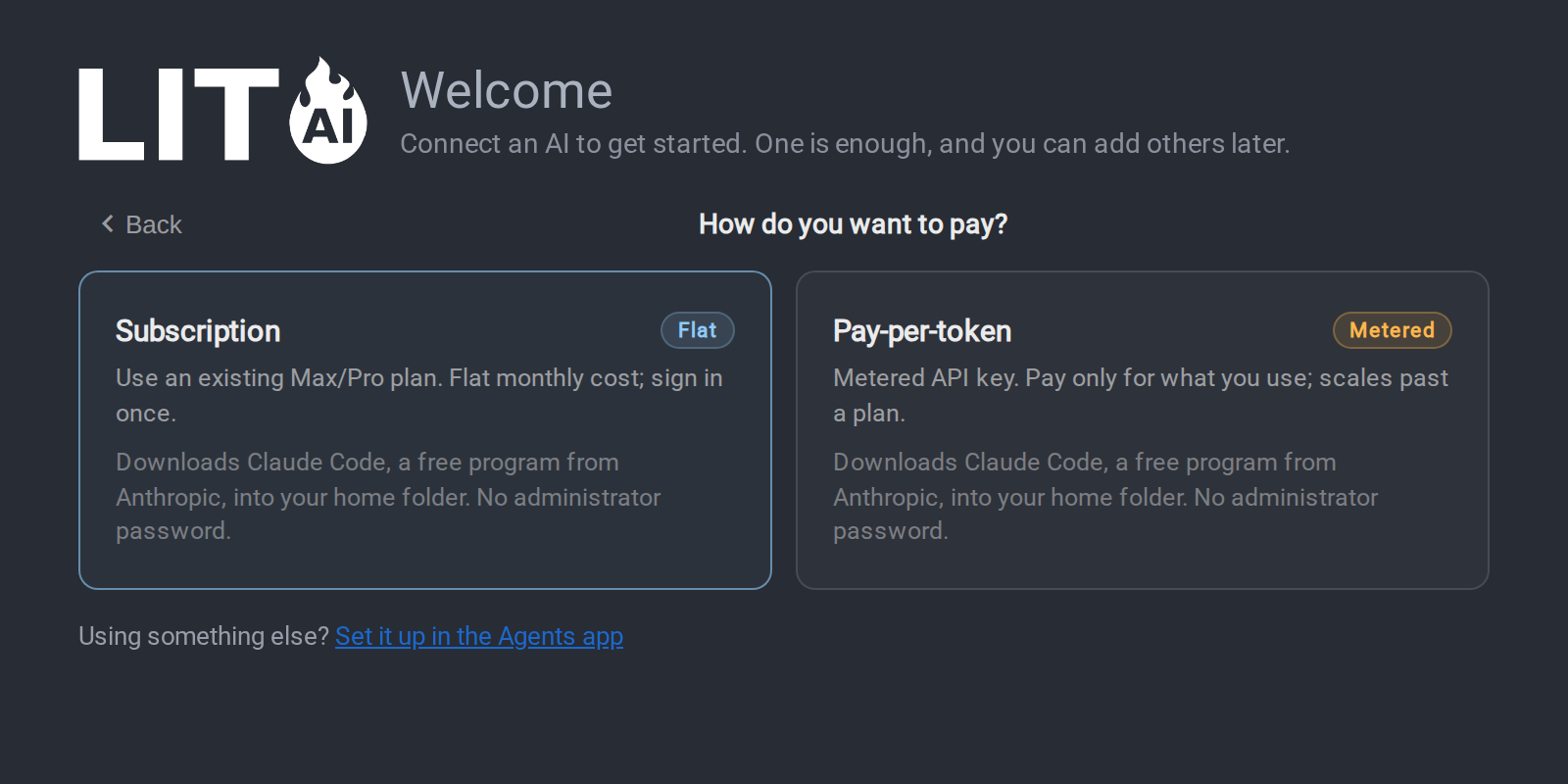
Each choice says what it will put on your computer. Claude runs through Claude Code, ChatGPT through Codex and Gemini through Antigravity: each is a free program from the provider, downloaded into your home folder with no administrator password. If LIT cannot download it on your system, it shows the provider's own install command to run yourself.
3. Sign in, or paste your key#
- Subscription: a sign-in page opens in a new browser tab. If your browser blocks it, use the Open sign-in link on the screen. Claude and Gemini show a code to paste back; ChatGPT shows a short code to enter on its page, and the screen moves on by itself.
- API key: paste it. LIT checks the key with the provider before storing it, so a mistyped key is caught here.
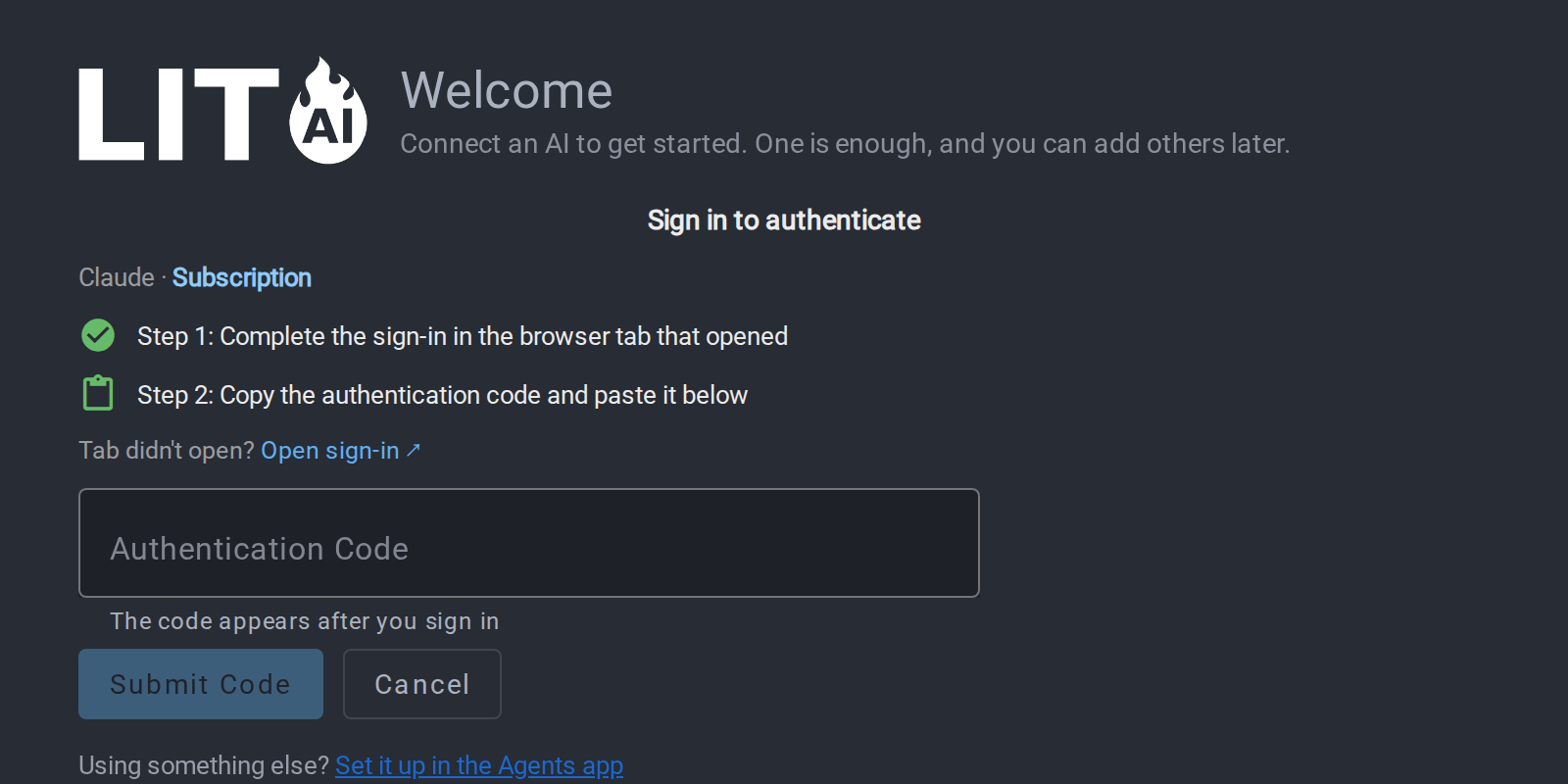
When that finishes, LIT creates your first assistant and opens the #general channel.
A local model#
Choose Local model to run through Ollama with nothing leaving your computer. Ollama's installer needs your administrator password, so LIT shows the command to run in a terminal. Once Ollama is running, LIT suggests a model sized to your computer's memory and downloads it for you.
Something else#
A Google AI Studio API key, a second provider, or several credentials: use Set it up in the Agents app at the bottom of the welcome screen. A Google API key runs through the Gemini CLI, which you install yourself (npm install -g @google/gemini-cli).
Verify Installation#
Send a message in #general:
Hello! Can you tell me what platform you're running on?
Your assistant should answer within a few seconds.
Updating#
Run the same installer again — it detects your existing installation and upgrades to the latest version:
To install a specific version:
Your settings and agents are stored separately in ~/.config/lit/ and are preserved across updates.
Troubleshooting#
Port already in use#
If port 8080 is already in use:
Something went wrong and the terminal says nothing#
lit serve keeps its terminal quiet: it prints the address, the path of its log file, and real errors. Everything else is in the log file, ~/.lit/logs/serve.log. To watch the log in the terminal instead:
Windows: "lit" is not recognized#
Use python -m lit serve instead. The pip Scripts directory isn't in your PATH.
Import errors on startup#
Make sure you're on Python 3.10–3.13 (python --version) and that the install finished without errors; re-run the installer to repair.
Windows: WSL2 install times out (error 0x800705b4)#
wsl --install -d Ubuntu fails with:
This operation returned because the timeout period expired.
Error code: Wsl/InstallDistro/Service/RegisterDistro/CreateVm/0x800705b4
WSL2 runs its own lightweight VM, and this error means that VM can't launch. Task Manager showing "Virtualization: Enabled" is not sufficient — that only means the CPU flag is visible, not that the hypervisor actually booted. Work through these in order:
-
Bare metal: if Task Manager → Performance → CPU shows
Virtualization: Disabled, enable VT-x (Intel) or AMD-V/SVM in your BIOS/UEFI settings. -
Hypervisor not launching: in an administrator PowerShell:
Reboot, then verify with
systeminfo | findstr /i hyper— you want to see "A hypervisor has been detected." If you instead see a requirements checklist, the hypervisor still isn't running. -
Windows is itself a virtual machine (VMware, VirtualBox, KVM/QEMU, Hyper-V): WSL2 needs nested virtualization enabled on the host hypervisor. If you can't enable it — or WSL2 still times out — fall back to WSL1, which needs no VM at all:
WSL1 runs the platform itself fine (and is often faster inside a VM), but with caveats: no systemd, and the Claude backend won't work — Claude Code requires WSL2 or newer and refuses to install on WSL1. Under WSL1, connect a provider other than Claude. If you need Claude and can't run WSL2, install LIT natively on Windows instead — see the Windows (PowerShell) tab.
License#
The pip install is a fully functional platform — not a limited trial or demo. You get the complete single-user experience: chat, autonomous agents, and persistent channels. Personal and non-commercial use is free, permanently.
What the pip install doesn't include is business infrastructure:
- Multi-user access and team administration
- SSO / Keycloak authentication
- Shared team channels across users
- On-premises support and SLAs
- Enterprise support
Think of it as try-before-you-buy: evaluate the complete platform at no cost, and when you're ready to deploy to a team or use it in a commercial context, contact us for commercial licensing.
Commercial use — deploying LIT Platform within a business, as part of a product or service, or in any revenue-generating context — requires a commercial license. View licensing options →
Next Steps#
- Explore the chat interface and try different AI models
- Read about Human-AI Collaboration best practices
- Windows users: Run LIT Platform automatically at startup